How to Compress Image Without Losing Quality: The Ultimate Guide
Are massive image files ruining your website’s loading speed? Perhaps you are trying to submit a document, but the portal keeps rejecting your upload because the file size is too large. Dealing with heavy, unoptimized images is a frustrating bottleneck for bloggers, developers, and students alike.
You know you need to make the file smaller, but you are terrified of ending up with a pixelated, blurry mess. The critical question is: how do you compress image without losing quality?
You do not need an expensive subscription to complex photo editing software. You just need the right utility. The Tool Master Image Compressor is specifically designed to strip away unnecessary file data while preserving the crisp, clear visuals of your original picture.
Let’s dive into exactly how you can instantly shrink your files, optimize your website, and solve your storage problems in seconds.
The Instant Solution: Compress Your Images Now
If you need a fast, reliable way to reduce your file size right now, you do not have to read a textbook on digital compression.
To instantly compress image without losing quality, simply upload your photo to the Tool Master image size reducer tool. Adjust the quality slider to our recommended 0.82 (82%) setting, and hit compress. Our algorithm will instantly strip the hidden metadata and optimize the pixel structure, giving you a lightweight file that looks identical to the original.
[Click Here to Use the Tool Master Image Compressor Now]
Why Image Size Matters (More Than You Think)
If a photo looks good, why does the file size matter? In the digital world, file size dictates performance.
First, there is the SEO impact. Search engines like Google heavily penalize slow-loading websites. If you have a 5MB hero image on your homepage, it will drag down your Core Web Vitals, causing your search rankings to plummet. To rank highly, you absolutely must optimize images for website speed.
Second, there are strict storage and upload limits. Email providers typically cap attachments at 25MB. Government, university, and job application portals frequently limit document and photo uploads to 2MB or less. If you cannot reduce your image size, you cannot hit “send.”
Real-World Use Cases: Who Needs an Image Compressor?
Knowing how to effectively reduce file sizes is a required skill for modern digital workflows, as highlighted by Google’s own SEO guidelines. Here is how professionals and everyday users rely on our tool:
1. Website Owners and Bloggers
Speed is revenue. If an ecommerce product page takes more than three seconds to load, the majority of mobile users will bounce to a competitor. Bloggers and web developers use our tool to compress large stock photos and product images before uploading them to WordPress or Shopify. By shrinking a 3MB banner down to 300KB, they dramatically improve page load times and user experience.
2. Emailing Heavy Attachments
Have you ever tried to email a folder of vacation photos to a family member, only to receive a “File Too Large” error? By using our tool to compress jpg without losing quality, you can shrink a batch of photos enough to easily bypass strict email attachment limits without making the memories look pixelated.
3. App Developers and UI Designers
Mobile applications need to be lightweight so users can download them quickly over cellular networks. Developers constantly use an image size reducer tool to compress app icons, background images, and UI elements.
4. Students and Job Seekers
Uploading a scanned copy of your ID, a headshot, or a portfolio to an application portal often comes with strict 1MB or 2MB file limits. Students and professionals use our tool to compress their documents so they fit the portal’s requirements without making the text or image illegible.
Before vs. After: The Proof is in the Pixels
What does “lossless” or “smart lossy” compression actually look like? It means the human eye cannot tell the difference, but the server certainly can. Look at this typical example of what happens when you process a standard smartphone photograph through Tool Master:
Original Image: High-resolution photograph of a landscape taken on a modern smartphone.
Original Size: 3.8 MB (3,800 KB)
Tool Master Compression Setting: Quality Slider set to 0.82 (82%)
Compressed Image Size: 450 KB
Total Reduction: 88% reduction in file size.
The Visual Result: When placed side-by-side on a standard 1080p or 4K monitor, both images look exactly the same. The colors remain vibrant, the edges remain sharp, and there is no visible artifacting. The tool simply removed invisible data and consolidated similar pixel colors that the human eye cannot differentiate.
How to Compress Image Without Losing Quality
Using the Tool Master interface is incredibly straightforward. We have stripped away the confusing technical jargon so you can get the job done in seconds. Here is your step-by-step guide:
Step 1: Upload Your Image
Navigate to the Tool Master Image Compressor. You can either drag and drop your image file directly into the designated upload area, or click the box to browse your device’s files. The tool natively supports the most popular web formats: JPG, PNG, and WebP.
Step 2: Adjust the Quality Slider
Once uploaded, you will see a Quality Slider. This controls the compression algorithm. For the absolute best balance between tiny file size and perfect visual fidelity, we recommend leaving the slider at 0.82 (82%). This is the “sweet spot” where file size drops dramatically, but the human eye detects zero changes. If you need it smaller, you can drag it lower.
Step 3: Click Compress
Hit the Compress button. In milliseconds, your browser will process the image.
Step 4: Compare and Download
The tool will instantly show you the results. You will see your original file size compared directly to your new, compressed file size. If you are happy with the incredible space savings, click Download to save the optimized file to your device.
Features of the Tool Master Image Compressor
Why do thousands of users trust Tool Master when they need to reduce image size online? We built our utility with user experience as the top priority.
Broad Format Support: Whether you need to process a standard photograph or compress png online free for graphic design work, we support JPG, PNG, and modern WebP formats.
Precision Quality Control: Unlike tools that force a one-size-fits-all compression, our dynamic Quality Slider lets you decide the exact balance between file size and visual clarity.
Instant Processing: Your time is valuable. Our tool works in milliseconds, allowing you to optimize assets and get back to work.
No Account Required: Forget about signing up for newsletters or handing over your email address. The tool is 100% free and instantly accessible.
Mobile-Friendly UI: Need to shrink a photo directly from your phone before uploading it to Instagram? Our responsive design works flawlessly on iOS and Android devices.
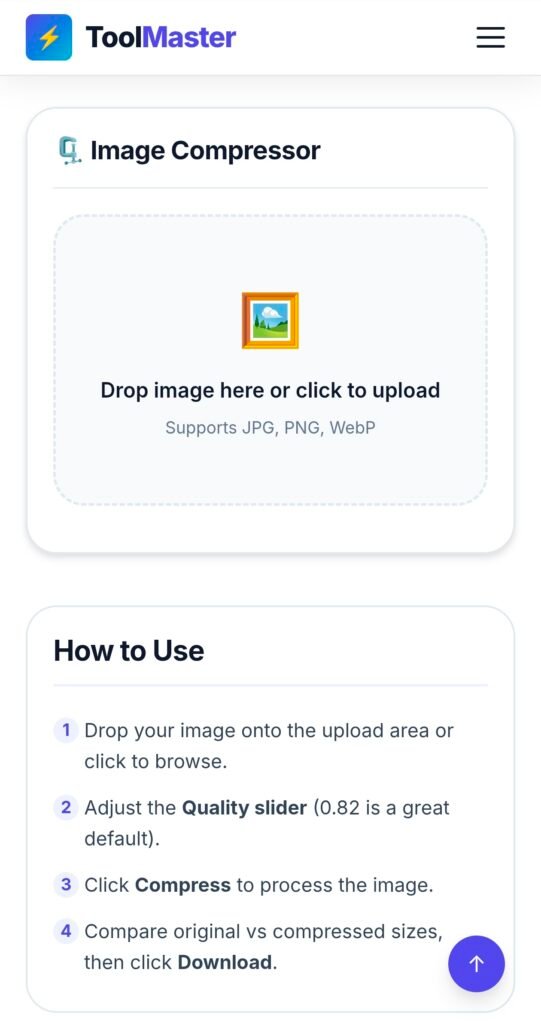 A side-by-side visual comparison demonstrating how to compress image without losing quality using the Tool Master image size reducer tool.A side-by-side visual comparison demonstrating how to compress image without losing quality using the Tool Master image size reducer tool.
Case Converter Comparison
Common Mistakes to Avoid When Compressing
To ensure you get the perfect result every time, avoid these rookie mistakes:
Over-Compression (Going Too Low): It can be tempting to drag the quality slider down to 10% to get a microscopic file size. However, this will cause visible pixelation and color banding. Stick between 0.70 and 0.85 for the best results.
Choosing the Wrong Format: JPG is best for photographs with millions of colors. PNG is best for graphics with flat colors, text, or transparent backgrounds. If you try to compress a highly detailed photograph as a PNG, the file size will remain stubbornly high.
Not Checking the Preview: Always take a quick glance at the downloaded image before you upload it to your live website or send it to a client.
Pro Tips for Advanced Optimization
Want to become an image optimization expert?
Combine our tool with these advanced workflows:
Embrace the WebP Format: If you are uploading images to a website, consider converting your JPGs and PNGs to WebP before compressing. WebP is a next-generation format developed by Google that provides superior compression and quality characteristics compared to older formats.
Resize Dimensions First: Compression reduces the file weight (KB/MB), not the physical dimensions (width/height). If you upload a 4000px wide photo from your digital camera, resize it to a maximum of 1920px wide before you compress it. This creates a compounding effect, resulting in incredibly small file sizes.
Standardize File Names for SEO: Before uploading your freshly compressed image to a web server, ensure the file name is readable and SEO-friendly. Use hyphens instead of spaces (e.g., blue-running-shoes.jpg). Pro Tip: Use a Case Converter tool to instantly convert your messy image filenames to lowercase. Linux servers are case-sensitive, and mixing capitals in file names can lead to broken image links.
Frequently Asked Questions (FAQ)
How to compress image without losing quality?
The most effective way is to use a “smart lossy” compression tool like the Tool Master Image Compressor. By uploading your file and setting the quality slider to around 80%, the tool removes invisible metadata and consolidates unnoticeable color profiles, drastically reducing the file size while keeping the visual quality identical.
What is the best image format for compression?
For photographs, JPG and WebP offer the best compression rates. For graphics with transparent backgrounds, PNG is required, though PNG files are inherently larger. For modern web design, WebP is the gold standard, offering smaller file sizes than both JPG and PNG.
How much can I actually reduce my image size?
Results vary based on the original file, but it is incredibly common to see reductions of 60% to 90%. A 3MB smartphone photo can easily be compressed down to 300KB or less without any visible degradation.
Can I compress png online free?
Yes. The Tool Master compressor fully supports PNG files. It will optimize the color palette and strip unnecessary data while preserving the transparency (alpha channel) of your graphics.
Is my data secure when I reduce image size online?
Absolutely. We value your privacy. The Tool Master Image Compressor processes your files securely, and we do not store, save, or distribute your uploaded images.
Stop Letting Large Files Slow You Down
Whether you are trying to speed up your blog, bypass a frustrating email limit, or just save some space on your hard drive, handling large files does not have to be a headache.
The Tool Master image size reducer tool is your fast, reliable, and entirely free solution. Stop compromising on visual clarity and stop fighting with complex photo editing software.
Take control of your digital assets today. Drop your heavy photos into the Tool Master Image Compressor and experience perfect quality at a fraction of the size!