The Ultimate Image Resizer Online: Fast, Free, and Flawless
We have all been there. You find the perfect photograph for your latest blog post, but your WordPress dashboard crashes because the file is 10 megabytes.
Or perhaps you are trying to upload a fresh profile picture to social media, but the platform awkwardly crops your face, ruining the composition. Dealing with massive, improperly sized images is one of the most frustrating parts of creating digital content.
Large photos do not just annoy you; they actively harm your website’s performance. Search engines penalize slow-loading sites, and impatient visitors will abandon your page if an image takes more than three seconds to load.
You need a quick, reliable way to reduce image size for web and social platforms. That is exactly why we built the Tool Master Image Resizer. It is the ultimate image resizer tool free of charge, designed to give you perfectly dimensioned photos in seconds. Let’s explore how you can take control of your digital assets today.
What is an Image Resizer?
An image resizer is a utility that changes the physical dimensions (width and height) of a digital photograph or graphic.
Every digital image is made up of tiny squares of color called pixels. A modern smartphone camera might capture an image that is 4,000 pixels wide and 3,000 pixels tall. While this looks stunning on a massive 4K monitor, it is absolute overkill for a small profile picture or a standard website banner.
When you use an image resizer online, the tool mathematically recalculates the pixel grid. It scales the image down (or up) to your exact desired dimensions.
The best tools—like Tool Master—do this intelligently. They discard unnecessary pixels without destroying the clarity of the remaining image, allowing you to resize image without losing quality.
Why Image Size Matters for SEO (And Your Bottom Line)
If you run a blog, an e-commerce store, or a business website, image resizing is not optional. It is a mandatory SEO practice recommended by Google’s official image optimization guidelines.
Google’s algorithm heavily favors websites that provide an excellent, snappy user experience. This is measured by Core Web Vitals, specifically a metric called Largest Contentful Paint (LCP). LCP measures how long it takes for the largest element on your page (usually a hero image) to load.
If you upload a massive 5,000-pixel wide image to a space that only requires 800 pixels, your server still has to load the entire massive file. This causes your LCP score to plummet.
A slow website leads to high bounce rates. When users leave quickly, Google assumes your content is low quality and drops your search rankings. By taking ten seconds to reduce image size for web before uploading, you instantly boost your site speed, improve your Core Web Vitals, and protect your hard-earned SEO rankings.
Key Features of the Tool Master Image Resizer
Why are digital professionals switching to Tool Master when they need an image resizer online? We built our tool to solve the biggest headaches associated with media management.
1. Instant, Frictionless Resizing
Your time is valuable. You should not have to boot up heavy desktop software just to change a photo’s width. Our tool loads instantly in your browser and processes your images in milliseconds.
2. Zero Quality Loss
A common fear is that resizing will result in a blurry, pixelated mess. Our advanced scaling algorithms ensure crisp, sharp edges. You can confidently resize image without losing quality.
3. Built-In Preset Sizes
Do not know the exact dimensions for a YouTube thumbnail or an Instagram Story? You do not need to. Tool Master includes one-click presets for every major social media platform and web format.
4. 100% Privacy via Client-Side Processing
We take your privacy seriously. Unlike sketchy tools that upload your private photos to external servers, Tool Master processes everything locally in your web browser. Your images never leave your device.
5. Completely Free with No Logins
There are no hidden paywalls, no watermarks, and no annoying account registrations. It is an image resizer tool free for everyone, forever.
 How to Resize an Image (Step-by-Step Guide)
Using Tool Master is incredibly intuitive. Even if you have zero graphic design experience, you can master this tool in under a minute. Here is exactly how to do it:
Step 1: Upload Your Image
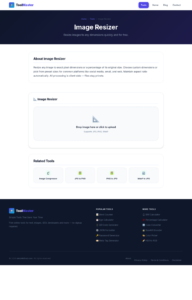
Navigate to the Tool Master resizer page. You can drag and drop your image directly onto the screen or click the upload box to browse your computer or mobile files.
Step 2: Choose Your Dimensions
You have two options here. You can manually enter your desired width and height in pixels. Alternatively, use our handy dropdown menu to select a preset (e.g., “Instagram Square Post”).
Step 3: Lock the Aspect Ratio (Crucial)
Make sure the “Lock Aspect Ratio” box is checked. This ensures that when you change the width, the tool automatically calculates the correct height so your image does not look stretched or squished.
Step 4: Click Resize and Download
Hit the “Resize Image” button. The tool will process your file instantly. Click the download button to save your perfectly optimized image directly to your device.
Real Use Cases: Who Uses an Image Resizer?
Optimizing images is a daily requirement for thousands of digital workers. Here is how different professionals use our tool to streamline their workflows:
E-commerce Store Owners
Product photos must look professional and uniform. If one product image is square and the next is rectangular, your storefront looks messy. E-commerce managers use Tool Master to standardize all product images to identical dimensions, ensuring a clean, trustworthy grid layout.
Bloggers and Content Creators
WordPress bloggers know the pain of heavy images slowing down their articles. Before publishing a post, smart bloggers use our tool to resize header images to a maximum width of 1200px, ensuring lightning-fast page speeds for their readers.
Social Media Marketers
Every platform demands different image sizes. A photo formatted for Pinterest will look terrible on a Facebook feed. Marketers use Tool Master to quickly generate multiple versions of a single campaign graphic, ensuring perfect framing on every app.
Web Developers
When building a website, developers need precise image assets. They frequently use our tool to generate responsive image sizes for mobile, tablet, and desktop views, ensuring the website loads efficiently on every device.
How to Resize Image for Instagram
Instagram is a visual platform; getting cropped awkwardly is a disaster. Use these dimensions to dominate the feed:
- Instagram Square Post: 1080 x 1080 pixels (1:1 ratio)
- Instagram Portrait Post: 1080 x 1350 pixels (4:5 ratio)
- Instagram Landscape Post: 1080 x 566 pixels (1.91:1 ratio)
- Instagram Story & Reels: 1080 x 1920 pixels (9:16 ratio)
YouTube Image Dimensions
First impressions matter on YouTube. Ensure your branding is sharp:
- YouTube Thumbnail: 1280 x 720 pixels (16:9 ratio)
- YouTube Channel Banner: 2560 x 1440 pixels
- YouTube Profile Picture: 800 x 800 pixels
Facebook Image Dimensions
Keep your business page or personal profile looking professional:
- Facebook Cover Photo: 820 x 312 pixels
- Facebook Shared Post Image: 1200 x 630 pixels
- Facebook Event Cover: 1200 x 628 pixels
X (Twitter) Image Dimensions
Stop your images from getting awkwardly cropped in the fast-moving timeline:
- X In-Stream Photo: 1600 x 900 pixels
- X Header Photo: 1500 x 500 pixels
- LinkedIn Image Dimensions
Maintain corporate professionalism with these B2B dimensions:
- LinkedIn Company Cover: 1128 x 191 pixels
- LinkedIn Post Image: 1200 x 627 pixels
Manual Software vs. Online Tool Comparison
Still thinking about using complicated desktop software? Let’s compare traditional methods against the modern convenience of the Tool Master online resizer.
Expert Tips to Resize Images Without Losing Quality
Want to become an image optimization master? Follow these pro tips to ensure your visual assets always look their absolute best.
1. Always Lock the Aspect Ratio
This is the golden rule of resizing. The aspect ratio is the proportional relationship between the width and the height. If you change the width without proportionally changing the height, your image will distort. Always keep the lock icon checked.
2. Downsize, Never Upsize
You can always make a large image smaller without losing quality. However, you cannot magically make a small image larger. If you try to stretch a 300px image to 1200px, the computer has to guess the missing pixels, resulting in a blurry, pixelated disaster. Always start with a high-resolution original.
3. Choose the Right File Format
When you compress and resize images online, save the final output in the correct format. Use JPG for complex photographs with thousands of colors. Use PNG for graphics with transparent backgrounds or crisp text. Alternatively, use the modern WebP format developed by Google for the ultimate balance of quality and small file size.
4. Combine Resizing with Compression
Resizing dimensions (pixels) is step one. Step two is reducing the file weight (kilobytes). After you resize your image, run it through an image compressor to strip out invisible metadata. This one-two punch is the secret to perfect website speeds.
Common Mistakes to Avoid
Even seasoned creators make these basic errors. Avoid these pitfalls to keep your images looking pristine:
Ignoring Mobile Users: You might resize an image to look great on your 27-inch desktop monitor, but have you checked how it looks on a phone? Always test your resized images on mobile screens.
Saving Over the Original: Never overwrite your original high-resolution master file! Always download your resized image as a new, separate file so you can go back to the original if you make a mistake.
Over-Cropping: Cropping is different from resizing. Cropping cuts off parts of the image, while resizing scales the whole image. Be careful not to accidentally crop out important details when trying to fit a specific dimension.
Frequently Asked Questions (FAQs)
We receive dozens of questions about image optimization. Here are the most common queries answered clearly:
How can I resize an image without losing quality?
The best way is to use a high-quality image resizer online like Tool Master. Ensure you lock the aspect ratio to prevent distortion, and only scale images down (never up). The tool will intelligently recalculate the pixels to maintain sharp visual clarity.
Is this image resizer tool free to use?
Yes, absolutely. The Tool Master Image Resizer is 100% free. There are no hidden fees, no daily limits, and you do not need to create an account or provide your email address to use it.
How do I reduce image size for web publishing?
First, determine the maximum width your website container actually displays (often around 800px to 1200px). Upload your heavy original file to our tool, set the width to that maximum, and download the new file. This will drastically reduce the file size and improve your site speed.
Can I use this tool to resize image for Instagram?
Yes! We have built-in presets specifically for Instagram. Whether you need a 1080×1080 square post or a 1080×1920 Story, simply select the Instagram preset from the dropdown menu and your image will be perfectly formatted.
What is the difference between resizing and compressing?
Resizing changes the physical dimensions of the image on the screen (e.g., from 2000 pixels wide to 500 pixels wide). Compressing removes invisible file data and optimizes the code to reduce the file weight (e.g., from 3 Megabytes to 300 Kilobytes). For best results, you should do both!
Are my private images safe when I use this tool?
Your privacy is our top priority. The Tool Master resizer operates using client-side processing. This means the mathematical resizing happens directly within your web browser. Your images are never uploaded to, or stored on, our database servers.
Can I compress and resize images online on my mobile phone?
Yes. Our website is fully responsive. You can easily access Tool Master from your iPhone or Android browser, upload a photo directly from your camera roll, resize it, and download it back to your phone instantly.
Stop Fighting With Your Images Today
Dealing with stubborn image formats, file size limits, and awkward cropping is a massive drain on your productivity. Whether you are building a professional website, running an e-commerce empire, or just trying to post a great photo to social media, your images need to work for you, not against you.
The Tool Master image resizer online puts the power of professional media manipulation right in your browser. It is fast, it is secure, and it is incredibly easy to use.
Stop letting large files slow down your website. Stop letting social media algorithms ruin your carefully composed photographs. Take total control over your digital assets right now.
[Click Here to Try the Free Tool Master Image Resizer Now!]