The Ultimate Free JPG to PNG Converter: Instant, Private, and High Quality
We have all encountered this frustrating design problem. You have a beautiful logo or graphic that you want to place on a presentation, a website, or a social media post.
However, when you paste the image, it has a glaring, ugly white box around it. It completely ruins the aesthetic of your design. Why does this happen? It happens because your file is a JPG, and JPGs simply cannot handle transparency.
To fix this, you need to change the file format. Finding a reliable JPG to PNG converter is the first step to unlocking professional-level image editing, crisp graphics, and seamless web design.
If you are tired of downloading bulky software just to change a file extension, you are in the right place. Our Tool Master converter is built to be the fastest, easiest way to convert JPG to PNG online. Let’s dive into why this conversion is so important and how you can do it in seconds.
What is the Difference: JPG vs PNG?
Before you use an image format converter free of charge, it helps to understand exactly what you are changing. Digital images come in many formats, but JPG and PNG are the undisputed kings of the web.
What is a JPG (or JPEG)?
Developed by the Joint Photographic Experts Group, the JPG format was created to store complex photographs efficiently. It uses “lossy” compression. This means it permanently deletes hidden data to keep the file size incredibly small. While this is great for storing thousands of vacation photos on your phone, it is terrible for sharp graphics or text.
What is a PNG?
Portable Network Graphics (PNG) was created as an upgrade for web designers. Unlike JPG, PNG uses “lossless” compression. This means no data is ever thrown away. Every single pixel remains perfectly sharp, no matter how many times you save or edit the file. Most importantly, PNGs support an “alpha channel,” which is the digital magic that makes transparent backgrounds possible.
Why Should You Convert JPG to PNG?
Why go through the effort to switch formats?
Changing your file type unlocks several massive advantages for your digital projects.
1. Unlocking the PNG Transparent Background
This is the number one reason people use our tool. A JPG will always fill empty space with solid white pixels. If you want to cut out a product, a logo, or a person and place them on a new background, you must convert the image to a PNG first.
2. Perfect, Crisp Edges
Have you ever noticed a blurry, fuzzy halo around text or straight lines in a digital image? That is called “compression artifacting,” and it happens constantly with JPGs. Converting to PNG ensures that lines, text, and vector-style graphics remain razor-sharp.
3. Lossless Editing Workflows
If you open a JPG, edit it, and save it, the quality drops. If you do this five times, the image will look terrible. Because PNGs are lossless, you can edit and save them a million times without losing a single drop of visual quality.
Key Features of the Tool Master JPG to PNG Converter
There are hundreds of tools out there, so why do professionals trust Tool Master to convert image without losing quality? We built our utility to solve the biggest frustrations of online image editing.
Instant, Blazing-Fast Conversion
You should not have to wait in a virtual queue to process a simple file. Our tool uses optimized code to transform your image in milliseconds. Simply drop it in, and it is ready.
Absolutely No Quality Loss
Some cheap converters compress your file during the conversion process to save server space, leaving you with a muddy result. Tool Master guarantees a perfect, 1:1 pixel conversion so your new PNG looks exactly like your original JPG.
No Watermarks, No Subscriptions
We hate hidden fees as much as you do. Our tool is 100% free. We will never slap an ugly watermark on your finished image, and we will never force you to create an account or provide an email address.
Total Client-Side Privacy
Your files are your business. Unlike other converters that upload your personal photos to a remote server, Tool Master processes everything locally right in your web browser. Your images never leave your computer, ensuring absolute privacy and security.
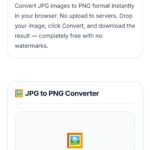
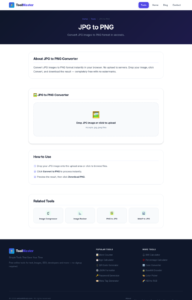
How to Convert JPG to PNG (Step-by-Step Guide)
Using Tool Master requires zero technical skills. We designed the interface to be as beginner-friendly as possible. Here is how to transform your files instantly:
Step 1: Open the Tool
Navigate to the Tool Master JPG to PNG Converter page. You will see a clean, distraction-free upload box.
Step 2: Upload Your JPG
You can drag and drop your .jpg or .jpeg file directly from your desktop into the box. Alternatively, click the upload area to browse your device’s file manager and select the image.
Step 3: Click Convert
Once the image is loaded, hit the convert button. Our local processing engine will instantly map the JPG data into a lossless PNG format.
Step 4: Download Your PNG
In less than a second, your new file will be ready. Click the download button to save the fresh, high-quality PNG directly to your hard drive or mobile device.
Real Use Cases: Who Needs This Tool?
Understanding the jpg vs png difference is crucial for anyone working in digital media. Here is how different professionals use our converter every single day:
Logo and Brand Designers
A logo saved as a JPG is practically useless for modern web design because of the solid background. Designers use our tool to convert client logos to PNG so they can remove the background and place the logo cleanly over website headers and video content.
E-commerce Store Owners
When selling products online, consistency is key. E-commerce managers frequently convert supplier photos to PNG. This allows them to cut out the product and place it on a uniform, branded background for their Shopify or Amazon store.
Social Media Marketers
Instagram graphics, YouTube thumbnails, and Facebook ads require crisp, clean text overlays. Marketers rely on PNG files to ensure their promotional text and graphical elements don’t suffer from the blurry artifacts common in JPG files.
Presentation Creators
Nothing ruins a professional PowerPoint or Keynote presentation faster than pasting a graphic with a mismatched white box background. Presenters convert their assets to PNG to create sleek, modern slides where images blend perfectly into the design.
JPG vs PNG Comparison Table
Still unsure which format is right for your specific project? Use this quick reference guide to understand the technical differences at a glance:
When NOT to Use a PNG (Important SEO Advice)
Tips for the Best Image Quality
Start with the Best Source File
Resize Before You Convert
Use PNG-24 for Best Results
Common Mistakes to Avoid
Mistake 1: Expecting Automatic Background Removal
Mistake 2: Manually Renaming the File Extension
Mistake 3: Ignoring File Weight
Frequently Asked Questions (FAQs)
Is this JPG to PNG converter really free?
Will I lose any quality when I convert JPG to PNG online?
Does converting to PNG automatically make my background transparent?
Is it safe to upload my personal photos to this tool?
Can I use this image format converter free on my mobile phone?
What should I do if my new PNG file is too large?