Convert PNG to JPG Online Free Without Losing Quality Fast
Are you struggling with slow-loading web pages or getting error messages when trying to upload an image? The culprit is often a massive PNG file.
PNGs are fantastic for keeping transparent backgrounds, but they create huge file sizes that eat up storage and ruin website speed. If you want a faster, smoother experience, you need to convert PNG to JPG online free without losing quality.
In this comprehensive guide, we will walk you through exactly why and how you should make the switch. We’ll show you how to use Tool Master’s free, blazing-fast converter to get the job done in seconds.
Let’s dive into how you can easily optimize your images today!
What is the PNG vs JPG Difference?
Before you hit the convert button, it helps to understand exactly what you are working with. The png vs jpg difference comes down to how each format handles data, color, and compression.
What is a PNG?
PNG stands for Portable Network Graphics. It is a “lossless” format, meaning it retains every single pixel of original quality. It also supports transparency, making it the go-to choice for logos and graphics with clear backgrounds.
However, this high quality comes at a heavy price: massive file sizes. A single PNG image can be several megabytes, which is terrible for web performance.
What is a JPG?
JPG (or JPEG) stands for Joint Photographic Experts Group. It is a “lossy” format, designed specifically to compress image data to make the file size significantly smaller. While it discards a tiny bit of data to achieve this, the human eye rarely notices the difference.
Because of this efficient compression, JPG is the undisputed king of digital photography and website images.
Why Convert PNG to JPG Online Free Without Losing Quality?
You might be wondering, why bother changing formats if PNG is higher quality? The truth is, in 90% of everyday scenarios, JPG is the superior choice. Here is why you should use a png to jpg converter.
1. Massive Reduction in File Size
The primary reason to convert is to reduce image size jpg formats offer. A 5MB PNG file can often be compressed down to a 500KB JPG. That is a 90% reduction without any noticeable drop in visual appeal.
2. Lightning-Fast Website Speed
If you run a blog, e-commerce store, or portfolio, speed is everything. Large PNGs cause pages to load at a crawl. Converting your images to JPG ensures your site loads instantly, keeping your visitors happy and engaged.
3. Better SEO Rankings
Google loves fast websites. Page speed is a critical ranking factor. By optimizing your images with an image converter free tool, you signal to search engines that your site is user-friendly, pushing you higher in search results.
4. Universal Compatibility
While most modern systems read PNGs, JPGs are universally accepted. Whether you are emailing a photo, uploading a profile picture, or submitting a digital document, JPG is guaranteed to work without compatibility errors.
Key Features of Tool Master PNG to JPG Converter
When you need to get the job done, you shouldn’t have to download clunky software or pay expensive subscription fees. Tool Master is designed to be the ultimate solution for your image needs.
Here is what makes our converter the best choice on the web:
- 100% Free Forever: No hidden fees, no credit cards, and no premium gates.
- Zero Quality Loss: Our smart algorithms compress png to jpg without losing quality visibly.
- Instant Conversion: Powered by cloud technology, your files are ready in milliseconds.
- Batch Processing: Have 50 images? Convert them all at once to save valuable time.
- Total Privacy: Your files are securely processed and automatically deleted from our servers after an hour.
- No Watermarks: We never ruin your images with branded stamps. The final image is entirely yours.
How to Convert PNG to JPG Online Free Without Losing Quality on Tool Master
We believe that essential web tools should be so easy a beginner can use them instantly. Converting your files takes less than a minute.
Follow these simple steps:
Step 1: Upload Your PNG File
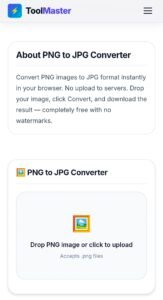
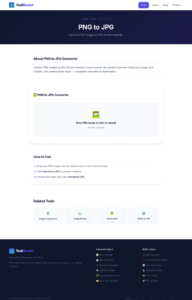
Click the “Upload” button on the Tool Master converter page, or simply drag and drop your PNG image directly into the designated box on your screen.
Step 2: Adjust Settings (Optional)
If you need specific dimensions, you can quickly jump over to our Image resizer tool first. Otherwise, leave the settings on default for the perfect balance of size and quality.
Step 3: Click “Convert”
Hit the conversion button. Our secure cloud servers will instantly process your image, safely transitioning it into a lightweight JPG.
Step 4: Download Your New JPG
Click “Download” to save the file to your computer or mobile device. It is that simple! You now have a web-ready image.
Real-World Use Cases for Converting Images
Who exactly benefits from an image converter free tool? Almost anyone who works with digital files.
For Web Developers & SEO Experts
Every kilobyte matters when building a website. Developers constantly use our tool to swap out heavy PNGs for lightweight JPGs to pass Google’s Core Web Vitals tests and improve loading speeds.
For Photographers
If you shoot in RAW and export to PNG, sending those files to clients via email is impossible. Converting them to high-quality JPGs allows for easy sharing while maintaining stunning visual fidelity.
For Students and Office Workers
Many online portals for submitting homework, resumes, or government forms have strict file size limits (often under 2MB). Converting to JPG is the quickest way to ensure your documents are accepted.
PNG vs JPG Comparison Table
Still not sure which format is right for your specific task? Use this quick cheat sheet to make the right choice.
| Feature | PNG (Portable Network Graphics) | JPG (Joint Photographic Experts Group) |
|---|---|---|
| File Size | Very Large | Very Small |
| Compression | Lossless (No data lost) | Lossy (Reduces data for size) |
| Transparency | Yes (Supports clear backgrounds) | No (Background becomes solid white) |
| Best Used For | Logos, Icons, Text-heavy graphics | Photographs, Web images, Social media |
| Load Speed | Slow | Blazing Fast |
When NOT to Use a JPG (Important Exceptions)
While we highly recommend JPGs for almost everything on the web, there are a few specific instances where you should stick to PNG. Knowing the png vs jpg difference prevents costly design mistakes.
1. You Need a Transparent Background
This is the golden rule. JPG does not support transparency. If you convert a PNG logo with a transparent background into a JPG, the background will automatically turn stark white. If you need transparency, keep the PNG.
2. Graphics with Crisp Text
If your image contains very fine text, charts, or sharp geometric lines, JPG compression can sometimes cause “artifacts” (slight blurriness around the edges of the text). PNG keeps text razor-sharp.
Pro Tip: If you realize you made a mistake and need to reverse the process, you can easily use our JPG to PNG converter to switch it back!
Expert Tips to Maintain Quality While Converting
Many people worry that “lossy” compression means their photos will look terrible. That is a myth. You can absolutely compress png to jpg without losing quality that the eye can see. Here is how:
Start with a High-Quality Source
The better your original PNG, the better your final JPG will look. Never try to upscale a tiny, pixelated PNG before converting it.
Use the Right Compression Level
Tool Master automatically applies an optimal compression ratio (usually around 80%). This sweet spot drastically cuts the file size but keeps the visual integrity perfectly intact.
Combine with Other Optimization Tools
If you convert a massive 8000px wide PNG to a JPG, the file might still be a bit large due to its physical dimensions. For the best results, convert the format first, and then run it through a dedicated Image compressor to shave off those final few kilobytes.
Common Mistakes to Avoid When Converting Images
Even though the process is simple, beginners often make a few critical errors that ruin their workflow.
Mistake 1: Deleting the Original Immediately
Never delete your master PNG file until you have verified the new JPG looks exactly how you want it to. Always keep a backup folder of original high-resolution files just in case you need to edit them later.
Mistake 2: Re-saving JPGs Over and Over
Because JPG is a lossy format, every single time you edit and re-save a JPG, it loses a tiny bit of data. If you do this five or six times, the image will become blurry. Do all your editing on the PNG, and make converting to JPG your very last step.
Mistake 3: Forgetting About Image Dimensions
Changing the format to reduce image size jpg is great, but uploading a 4000px wide image to a space that only requires a 400px image is a waste. Always resize your images to fit their destination.
Frequently Asked Questions (FAQs)
We get a lot of questions from users trying to optimize their media. Here are the most common answers about using a png to jpg converter.
1. Is the Tool Master converter actually free?
Yes! Our image converter free tool is 100% free to use. There are no daily limits, no hidden paywalls, and no software to download.
2. Will my image become blurry after converting?
No. When you use our tool to convert png to jpg online free without losing quality, we use advanced algorithms that shrink the file size while preserving high-definition visuals. The naked eye will not spot the difference.
3. How do I reduce image size in JPG format even further?
If your converted JPG is still too large for your needs, you can reduce its physical dimensions (height and width) using our Image resizer, or use our extreme Image compressor tool.
4. Are my uploaded files safe and private?
Absolutely. We take your security seriously. All uploads are encrypted via SSL, processed automatically by machines, and completely wiped from our servers shortly after conversion. Nobody sees your files but you.
5. Can I use this tool on my mobile phone?
Yes! Tool Master is fully optimized for all devices. Whether you are on a Mac, Windows PC, iPhone, or Android tablet, you can convert your images effortlessly from your browser.
6. Can I convert a JPG back to a PNG?
Yes, you can easily reverse the file format using our dedicated JPG to PNG converter tool. However, remember that saving a JPG as a PNG will not restore the data lost during the original compression.
Conclusion: Optimize Your Images Today
Dealing with massive, bulky image files is a thing of the past. By understanding the png vs jpg difference, you can make smarter choices about how you handle media on your computer and your website.
Whether you are a developer trying to speed up a client’s website, a photographer sharing an album, or a student submitting an assignment, you need a reliable way to manage your files.
You don’t need expensive software to get professional results. You can convert png to jpg online free without losing quality in just a few clicks right here on our platform. Stop letting heavy PNG files slow you down, ruin your SEO, and eat up your hard drive space.
Are you ready to optimize your images for maximum speed and performance?
Use the Free PNG to JPG Converter Now!